
Windows has a feature that allows it to put USB ports in suspend mode, which deactivates the USB port, and will activate them when it detects the USB port is needed. Sometimes this process doesn’t properly activate the USB ports, which can affect the MindWare Bionex connection in addition to software keys.
Please follow the steps below to disable USB Selective Suspend:
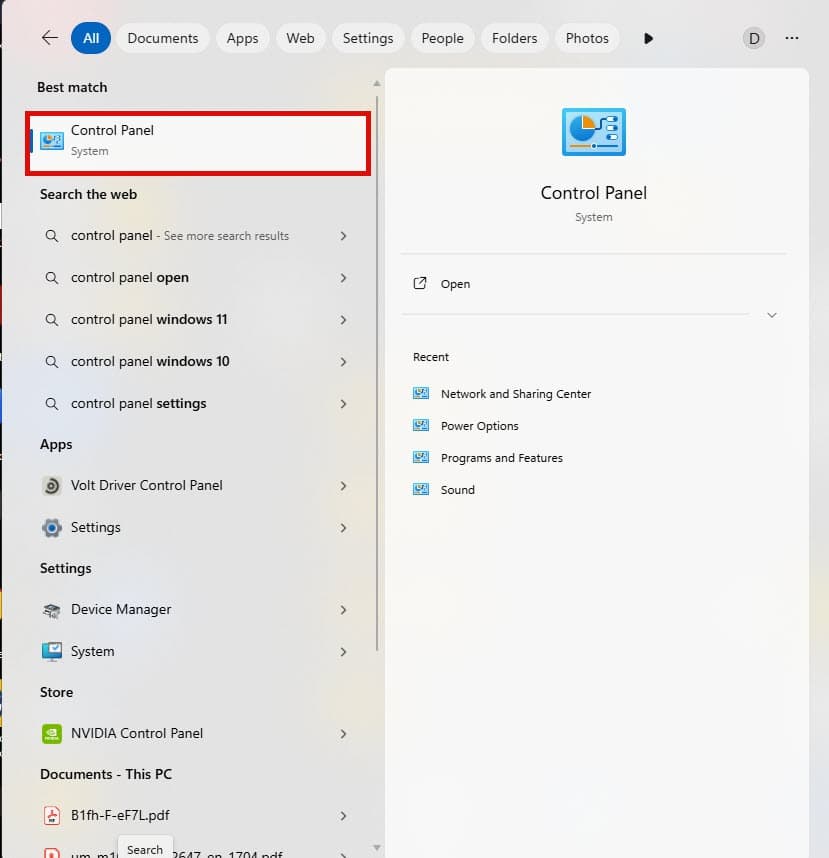
In the Windows Search Bar type in Control Panel and select the option that appears.
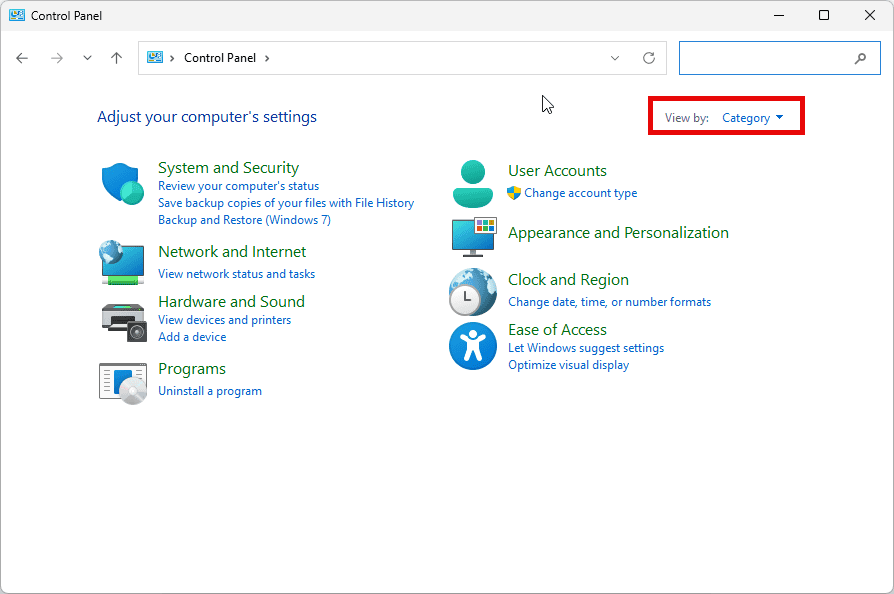
In Control Panel, change the View By from Category to Large Icons.
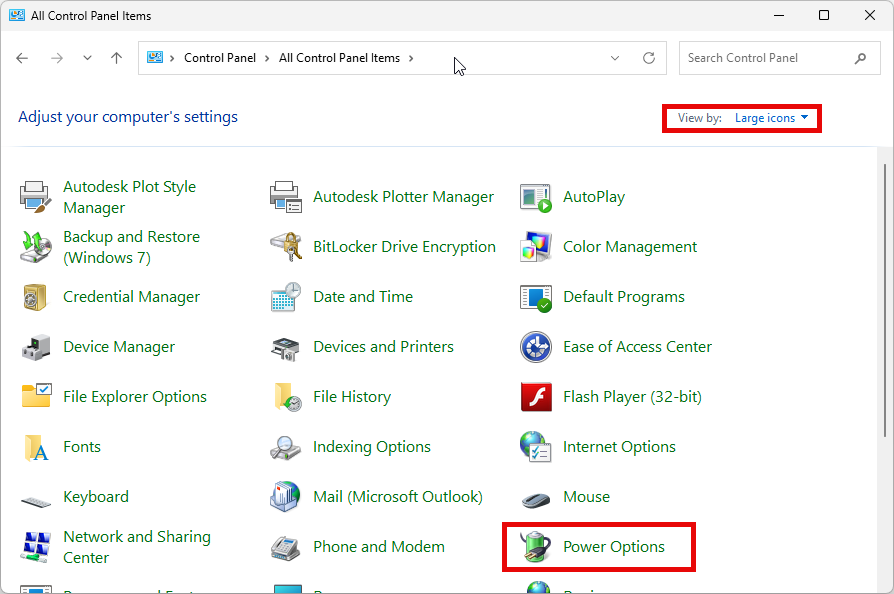
Open Power Options.
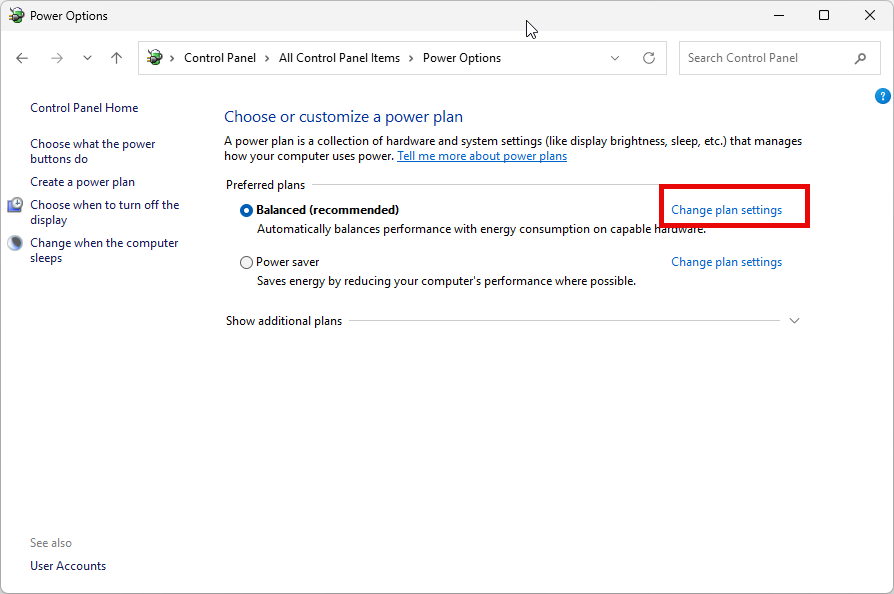
Within Power Options, select Change plan settings.
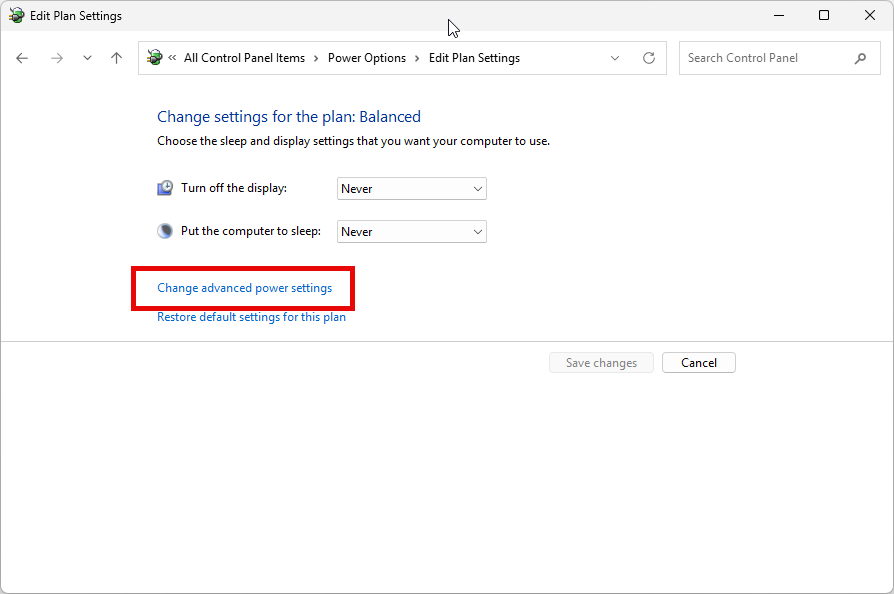
In the Edit Plan Settings screen, select Change advanced power settings.
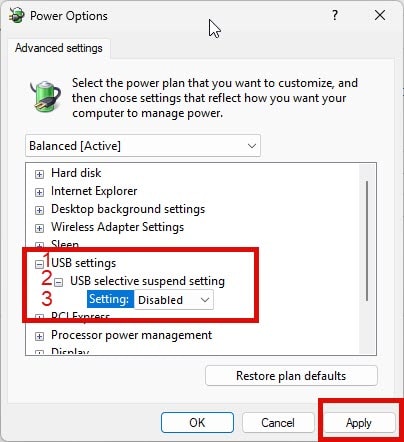
In the Power Options window, locate USB settings (1) and press the + next to it. Then press the + button next to USB selective suspend setting (2) and then change the Setting (3) to Disabled. Press Apply to save changes.
If the USB still isn’t able to identify or read the device connected to it, you may need to restart the PC for changes to fully take effect. You may additionally need to disconnect the device and reconnect it to take advantage of the new settings.