
If you need to replace your MindWare Mobile SD card, you’ll need to format the card to fit the specifications of the MindWare Mobile.
The MindWare Mobile uses FAT32 as the SD card file format. For normal usage we recommend an SD card no larger than 32GB.
If you have an SD card larger than 32GB it can be formatted to FAT32 up to 2TB, however this requires more technical knowledge and is not recommended.
Formatting
To format an SD card for use in the MindWare Mobile, insert the SD card or connect the SD card with a USB SD card reader. The PC should then open the SD card in File Explorer.
Near the top of the window, press the 3 dots to open more options.
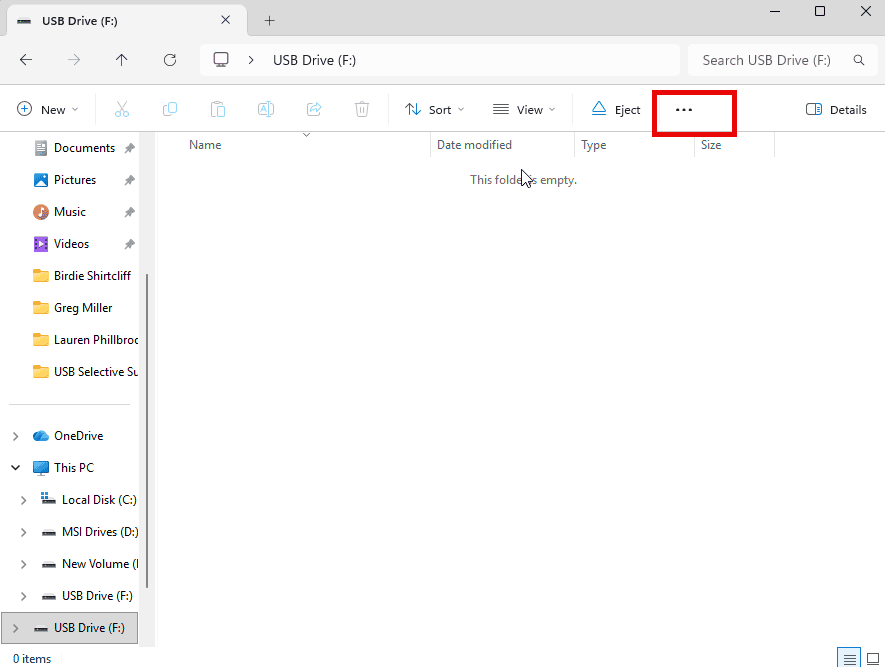
Select Format and Windows will open the formatting tool.
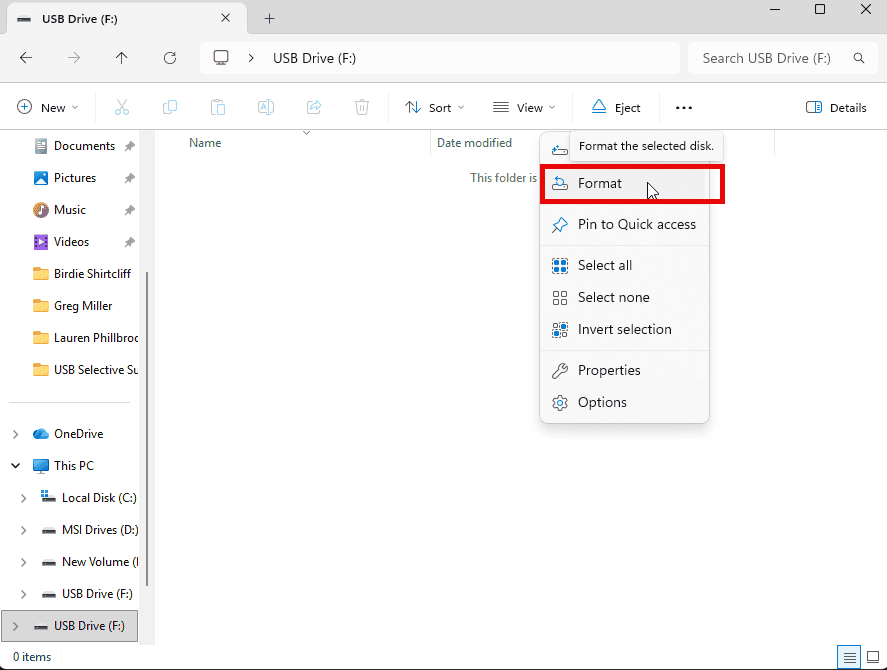
The formatting tool has a few options which we will go over.
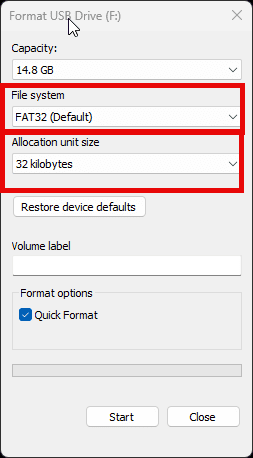
Capacity: Shows the total storage available on the SD card.
File System: This is where you choose the filesystem for the SD card. It should default to the appropriate filesystem for the card. If the card is less than 32GB, it will default to FAT32.
Allocation Unit Size: Indicates the smallest unit that the filesystem can use to store data. Leave this default.
Volume Label: Rename the SD card. Note: This does not affect the Drive Letter.
Format Options: Enables Quick formatting.
Normal vs Quick Formatting
Normal formatting will overwrite all the data on the card with zeroes, making it unrecoverable. Quick formatting flags the data as overwritable. Which one you should use depends on the data deletion policy of your space.
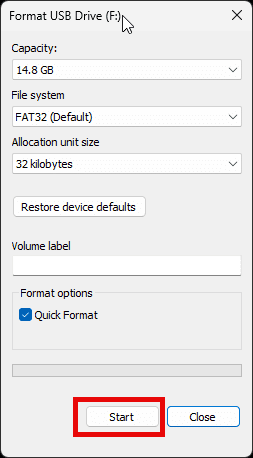
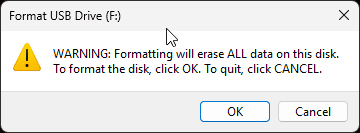
To format the card, press Start in the Formatting tool. You will receive a warning that all data will be deleted,
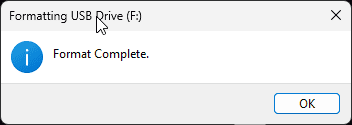
If the formatting is successful, you will see a Format Complete dialogue box.
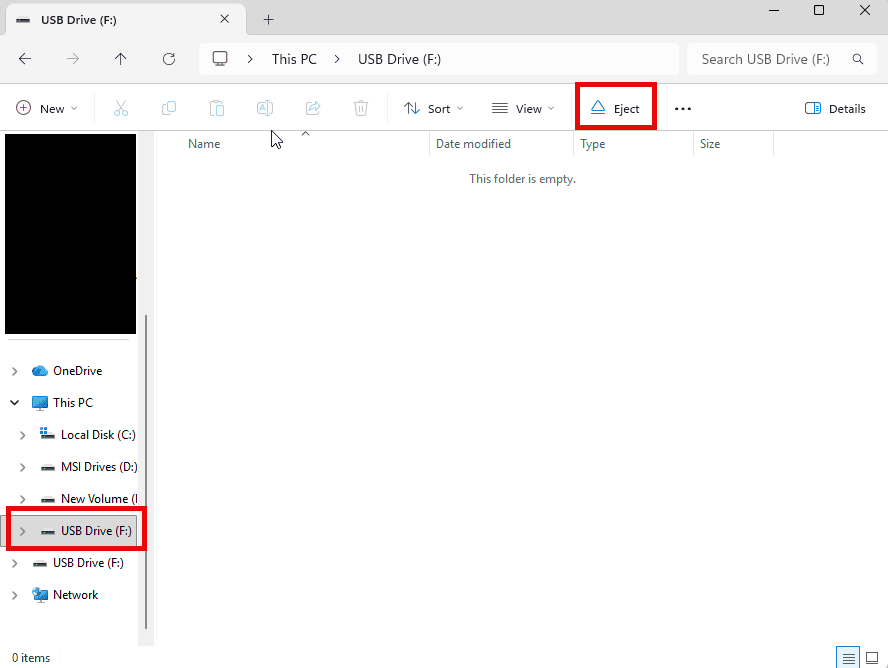
Click Ok and then click Close in the Formatting Tool. Reopen File Explorer and navigate to the SD card on the left hand side and then Eject the SD card. This will make it safe to remove from the PC.
After that, insert it into the Mobile to check that the Mobile recognizes the SD card.
SD Cards Larger Than 32GB
If you want to have or currently have an SD card larger than 32GB, it is possible to format it into FAT32 to be recognized by the Mobile. You can use either a 3rd party formatting tool or DiskPartition in Windows Command Prompt. We won’t highlight any specific 3rd party tool or how to use the Windows Command Prompt here as there will always be risks, and recommend consulting your IT department for assistance.